Attributes
data-scroll
Enable viewport detection on an element.
data-scroll-position
- Type:
string - Default:
start,end
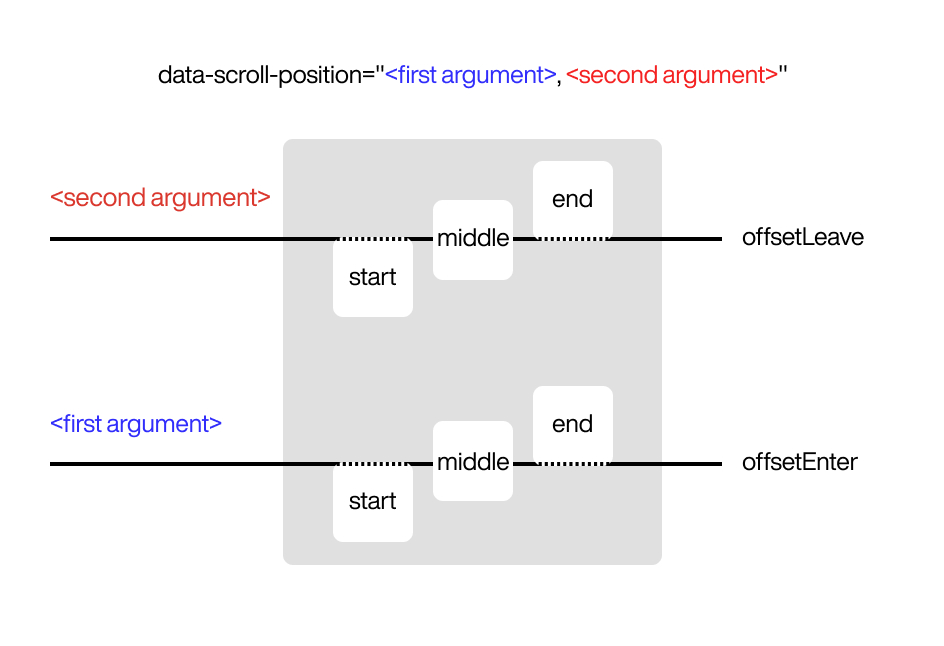
This attribute specifies the trigger position of the element within the scroll container when using Locomotive Scroll. It accepts two values: one for the position when the element enters the viewport, and a second for the position when the element leaves the viewport.
The position is calculated relative to the Lenis scroll container (which defaults to window, but can be customized via lenisOptions.wrapper).
Accepted values are: 'start', 'middle', 'end'.
Examples
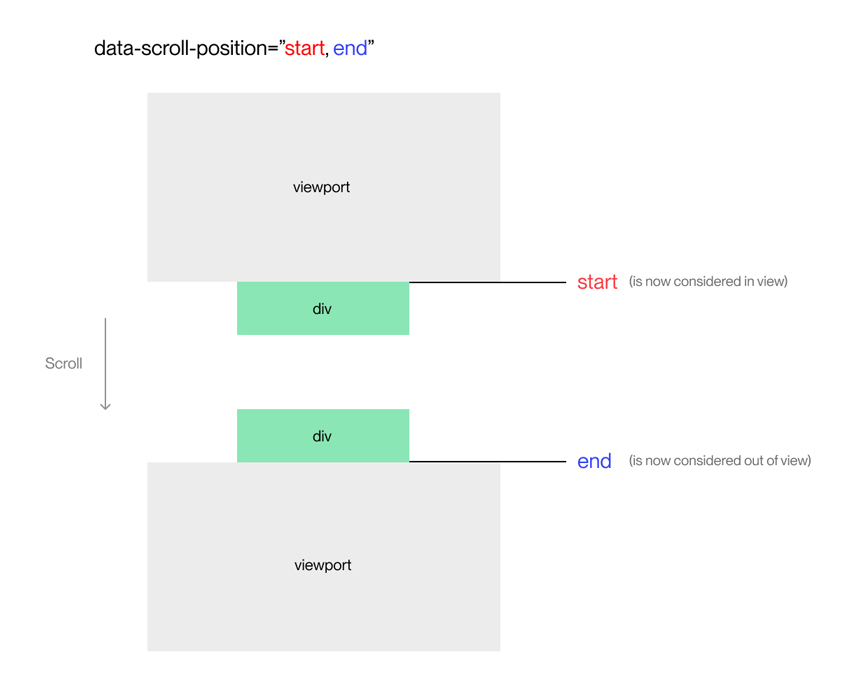
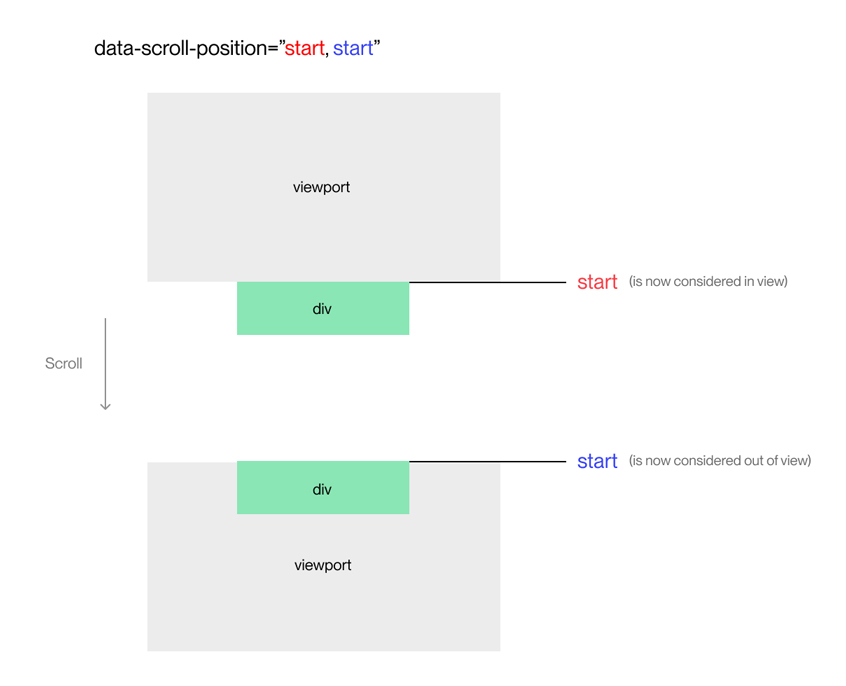
Here's an example of using Locomotive Scroll's data-scroll-position attribute on an HTML element:
<div data-scroll data-scroll-position="start, start"></div>
data-scroll-offset
- Type:
string - Default:
0,0
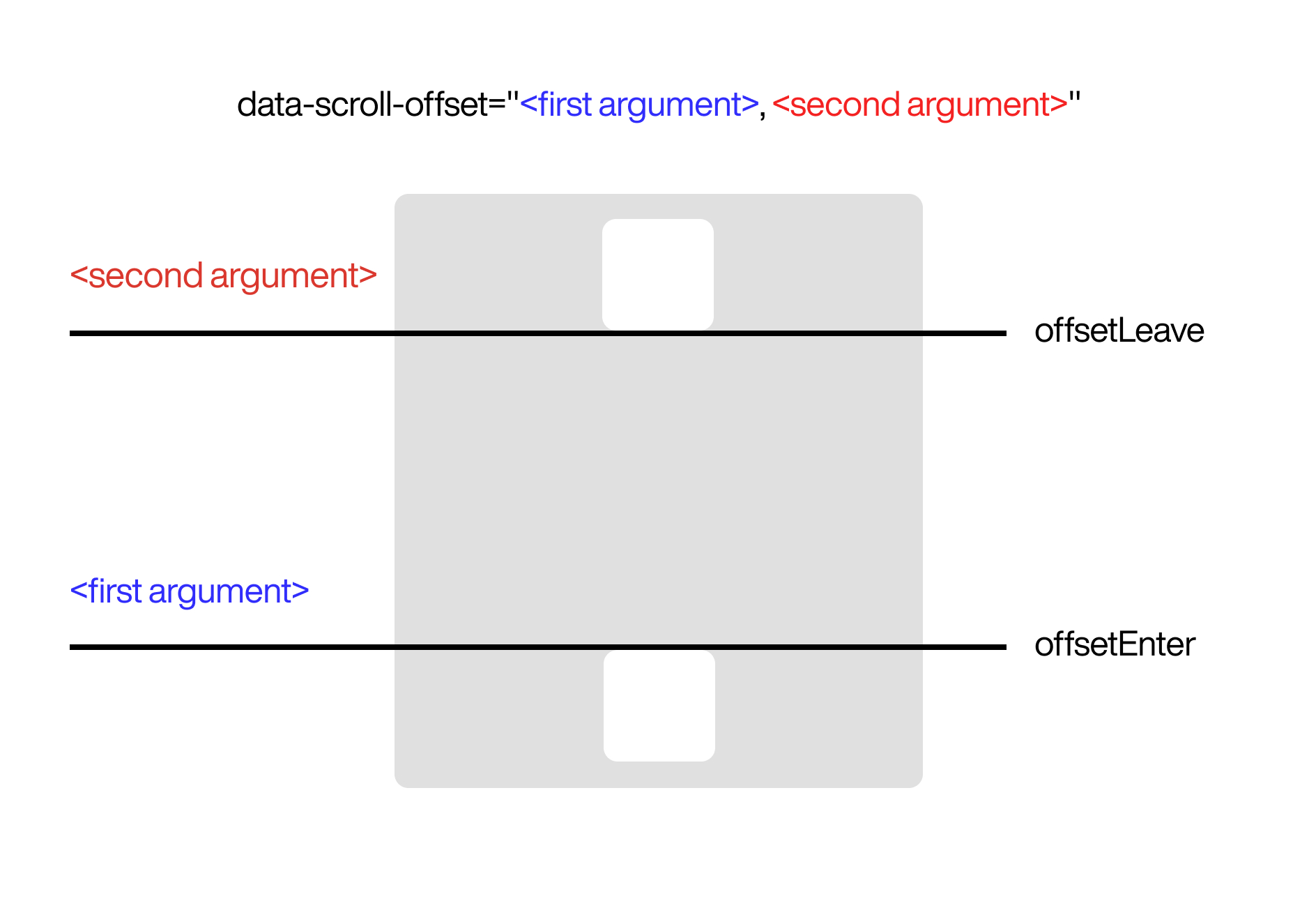
Specifies the trigger offset of the element within the viewport when using the Locomotive Scroll library. It takes two values: one for the offset when the element enters the viewport, and a second for the offset when the element leaves the viewport.
The offset can be defined in two ways:
- If specified in percentages, it is relative to the viewport height.
- If specified in pixels, it is an absolute value.
For example:
'100,50%'represents an offset of100pixels for the enter position and50%of the viewport height for the leave position.'25%, 15%'represents an offset of25%of the viewport height for the enter position and15%of the viewport height for the leave position.
Example
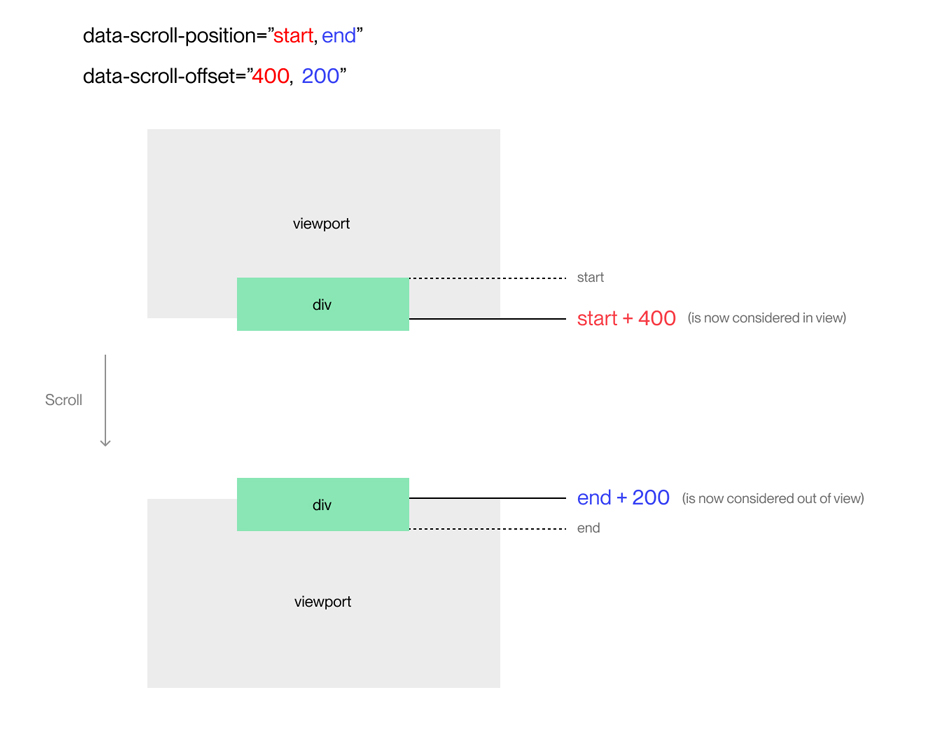
Here's an example of using Locomotive Scroll's data-scroll-offset attribute on an HTML element:
<div data-scroll data-scroll-offset="400, 200"></div>
data-scroll-class
- Type:
string - Default:
is-inview
Specifies a custom class to be applied to the element when its offset intersects with the viewport. The default class used is is-inview.
You can provide your own class name as a string value to customize the styling or behavior of the element when it becomes visible within the viewport.
data-scroll-repeat
Specifies whether the element's in-view detection should repeat if it is declared.
By default, the in-view detection of elements is not repeated. Simply declaring this attribute will enable the repeat behavior for in-view detection of the element.
data-scroll-speed
- Type:
number
Specifies the parallax speed for the element. The speed is relative to the scroll container size (not pixels), making it predictable across different viewport sizes.
How it works
The parallax displacement is calculated using:
displacement = progress × containerSize × speed × -1
Where:
containerSize= Height (or width for horizontal) of the Lenis scroll containerprogress= Element's progress through the viewport (-1to1for normal elements,0to1for in-fold elements)speed= Your specified value
Examples
With data-scroll-speed="1":
- Normal element: Moves from
+containerHeightto-containerHeight(total = 2× container height) - In-fold element: Moves from
0to-containerHeight(total = 1× container height)
With data-scroll-speed="0.5":
- Normal element: Total displacement = 1× container height
- In-fold element: Total displacement = 0.5× container height
With data-scroll-speed="-0.3" (negative = reversed):
- Element moves in opposite direction
- Total displacement = 0.6× container height
Touch devices
Parallax is automatically disabled on touch devices by default for better native scrolling performance. To enable it on mobile/tablets, add the data-scroll-enable-touch-speed attribute.
Start with small values like 0.1 to 0.5 for subtle effects. The value is now relative to container size, so effects scale naturally with viewport changes.
data-scroll-call
- Type:
string
The data-scroll-call attribute enables you to trigger a custom event when an element becomes visible within the viewport. This attribute requires a string value that specifies the name of the custom event that you want to trigger.
By utilizing the data-scroll-call attribute, you can define and trigger your own events to perform specific actions or handle certain behaviors when elements scroll into view. These events can be listened to and handled in your JavaScript code using event listeners or any event handling mechanism provided by your framework or library.
Here's an example of how to use the data-scroll-call attribute:
<div data-scroll data-scroll-call="scrollEvent">Trigger</div>
window.addEventListener('scrollEvent', (e) => {
    const { target, way, from } = e.detail;
    console.log(`target: ${target}`, `way: ${way}`, `from: ${from}`);
});
data-scroll-css-progress
If you declare this attribute, it will add a CSS variable --progress to the element. This variable represents the current progress of the element and ranges between 0 and 1.
By adding --progress as a CSS variable, you can utilize it in your CSS styles to create dynamic effects or animations based on the scrolling progress of the element.
data-scroll-event-progress
- Type:
string
When you declare this attribute, it will trigger the custom event that you specify. This event allows you to retrieve the current progress of the element, which ranges between 0 and 1.
By utilizing the custom event, you can implement event handlers in your JavaScript code to perform actions or retrieve information based on the scrolling progress of the element.
<div data-scroll data-scroll-event-progress="progressEvent">
    Progress custom event
</div>
import LocomotiveScroll from 'locomotive-scroll';

const locomotiveScroll = new LocomotiveScroll();

window.addEventListener('progressEvent', (e) => {
    const { target, progress } = e.detail;
    console.log(`target: ${target}`, `progress: ${progress}`);
});
data-scroll-to
Prevents the click event and initiates scrolling to a target. If the element is a link (<a>), it uses the href attribute as the target. Otherwise, if the element has the data-scroll-to-href attribute, it uses that as the target.
data-scroll-to-href
- Type:
string
Specifies the target for the data-scroll-to action. If the element is a link, the href attribute is used as the target. Alternatively, you can specify a custom target using the data-scroll-to-href attribute.
data-scroll-to-offset
- Type:
number
Specifies the scroll offset for the data-scroll-to action. The value is a number that represents the scroll padding top. It determines the vertical offset from the top of the target element when scrolling to it.
data-scroll-to-duration
- Type:
number
Specifies the duration of the scroll animation for the data-scroll-to action. The value is a number representing the scroll duration in seconds. It determines how long the scrolling animation takes to reach the target element.
data-scroll-ignore-fold
If an element is within the fold (visible portion of the viewport), its offset is automatically adjusted to start its progress from its starting position. However, if you want to ignore this default behavior and prevent the offset adjustment, you can use the data-scroll-ignore-fold attribute.
Please note that by using the data-scroll-ignore-fold attribute, the element's progress will not be influenced by its position within the fold, and its offset will remain unchanged throughout the scrolling process.
data-scroll-enable-touch-speed
By default, the parallax effect (data-scroll-speed) is automatically disabled on touch devices to ensure smooth scrolling performance. Touch devices are detected using 'ontouchstart' in window || navigator.maxTouchPoints > 0.
If you want to enable the parallax effect on touch devices, add the data-scroll-enable-touch-speed attribute to the element.
Example:
<!-- Parallax disabled on touch devices (default) -->
<div data-scroll data-scroll-speed="0.5">
    Parallax only on desktop
</div>

<!-- Parallax enabled on all devices including touch -->
<div data-scroll data-scroll-speed="0.5" data-scroll-enable-touch-speed>
    Parallax on desktop AND mobile
</div>
Note: Enabling parallax on touch devices may impact scrolling smoothness, especially on lower-end mobile devices. Use this attribute judiciously and test thoroughly on target devices.